GeoJSON / TopoJSON
In the
Files
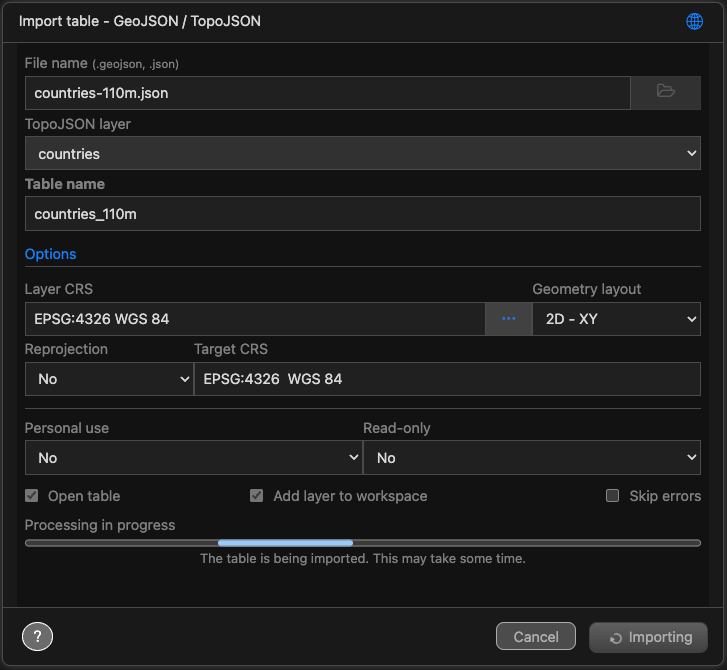
Select .geojson, .topojson, or .json files for import. The system validates the file structure to ensure it contains valid features, geometry collections, or topologies.
TopoJSON Layer
If a TopoJSON file is uploaded, the system will scan it and an additional TopoJSON layer drop-down list will appear. You must select the specific layer (object) you wish to import from this list.
Table Name
The name of the new table. The system automatically generates a unique table name based on the file name, but this can be manually adjusted.
Layer CRS and Reprojection
The system scans the beginning of the file to automatically detect the Coordinate Reference System (Layer CRS). If standard latitude/longitude coordinates are found, it will automatically default to EPSG:4326 (WGS 84). You can also choose to reproject the data into a different Target CRS during the import process.
Geometry Layout
You can specify the geometry layout for the imported features (2D - XY, 3D - XYZ, 3D - XYM, or 4D - XYZM) from the drop-down list.
Options
- Personal Use - Table imported with this option will be linked to your username and will therefore only be visible to you. It makes sense to use layers based on such tables only in workspaces that are available only to you, as other users will not have access to these tables.
- Read-only - Enable the option if you want to prevent the table data from changing.
- Open Table - The table will be opened and loaded automatically after import.
- Add Layer to Workspace - If the Open Table option is checked, you can enable this option to automatically add the resulting layer to your current workspace.
- Skip errors - Continue importing the rest of the data if individual features encounter an error (e.g., invalid geometry). Problematic records will not be transferred to the target table.
Processing
Large files are streamed and processed in chunks to ensure stability. During the database import, potential column name conflicts—such as an existing 'gid' property often found in GeoJSON exports—are automatically resolved by utilizing temporary primary keys to prevent collisions with Gismatrix system columns.