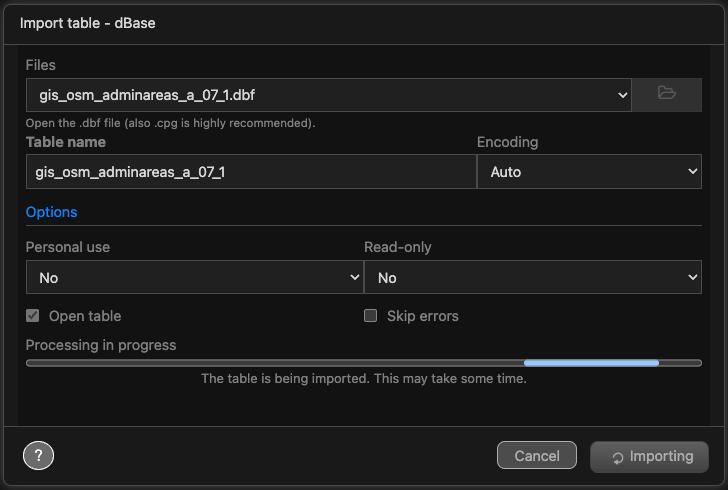
dBase (DBF)
In the
Files
Select, drag and drop, or paste (Ctrl+V) a .dbf file, with a matching .cpg
encoding file (for example, roads.dbf and roads.cpg) strongly recommended. If the folder
is already authorized in Gismatrix (or if you drop the folder), the matching .cpg file is collected
automatically.
Table Name
The name of the new table. The system automatically generates a unique table name based on the file name, but this can be manually adjusted.
Encoding
Data in Gismatrix is stored in UTF-8 encoding. You can specify the source file encoding using the drop-down list. The system will automatically attempt to read the text encoding by inspecting the contents of the .cpg file, if one is available.
Options
- Personal Use - Table imported with this option will be linked to your username and will therefore only be visible to you. It makes sense to use layers based on such tables only in workspaces that are available only to you, as other users will not have access to these tables. If the current workspace is accessible to everyone, one option is to duplicate the Workspace and make it private before importing the table. The user who imported the table or administrators can change this setting in the Table Manager.
- Read-only - Enable the option if you want to prevent the table data from changing. The user who imported the table or administrators can change this setting in the Table Manager.
- Open Table - The table will be opened and loaded automatically after import. If this option is not checked, the table will not be available for use until you open it.
- Skip errors - Continue importing the rest of the data if individual features encounter an error. Problematic records will not be transferred to the target table or layer.
Processing
The import process handles standard dBASE tabular files and seamlessly loads them into the system. Potential column name conflicts, such as an existing 'gid' column, are automatically resolved during the import by generating unique temporary names that avoid collision with Gismatrix system keys.