Document templates
Document templates are used to produce documents, which typically contain a map and descriptive information.
The templates are available in a drop-down list in the Document Templates group when you press the
Setting document templates
Document templates are prepared as a docx document, which can be created using Microsoft Word, Google Docs, Apple pages, OpenOffice and other tools that allow the creation of docx documents.
You define a new template on the Settings/Document templates page. Enter the name of the template that will be displayed in the drop-down list and add the template document in docx format. The name of the docx file is used to name the document produced later from the template.
In the toolbar of the Document templates page, you will find a button to download a simple sample template that you can edit to suit your needs and add to the set of templates.
preparing the document template
A document template may contain map placeholder, text, images, tables, specific formatting and constants, the use of which is described below.
Map placeholder
Reserve the space where the map will be located in the document by inserting any pNG image into the document, stretching it to the desired size and giving it the alternative text {"{map1}"}
Add alternative text in Microsoft Word: Select the picture and then select the picture Format menu. Select Alt Text. Enter {"{map1}"}
The {"{map1}"} keyword in the image placeholder specifies that the size of the image should be used to produce the map and that the image should be replaced by the map in the final document.
It is recommended to keep the image small, e.g. 200px x 200px, and then stretch it to the desired size. The proportions of the image are taken into account when preparing the map.
Constants
Constants are keywords that are entered inside the wrapped brackets directly in the the text of the document. You can use the shorter name of the constant instead of the full name. In the process of creating a document, the names of the constants are replaced by the value of each constant. For example, the {map.scale} function is replaced by the text 1000. 1000 in this case represents the current scale of the map, i.e. 1:1000.
| Description | Function | Function alias |
|---|---|---|
| The full name of the logged-in user, as defined by the user when creating the user account. The user can change the name in the Settings/My profile settings. | {gismatrix.user_full_name} | {g.ufn} |
| Date of creation of the document. | {content.date} | {c.d} |
| Insert a page break. | {content.page_break} | {c.pb} |
| Displays the "Text" pop-up window in the selected application language, allowing you to enter text. Text input is optional. If the pop-up window is cancelled, the document preparation is aborted. | {content.input} | {c.i} |
| Displays the "Document title" pop-up window in the selected application language, allowing you to enter text. Text input is optional. If the pop-up is cancelled, the printout preparation is aborted. | {content.title} | {c.t} |
| Displays a pop-up window titled "Text" or "Customer" in the current language of the application, allowing multi-line text input. Text input is optional. The numbers in the constant represent the line of text entered. If the pop-up window is cancelled, the printout preparation is aborted. |
"Text" {content.textarea1} {content.textarea2} {content.textarea3} {content.textarea4} {content.textarea5} "Customer" {content.customer1} {content.customer2} {content.customer3} {content.customer4} {content.customer5} |
"Text" {c.ta1} {c.ta2} {c.ta3} {c.ta4} {c.ta5} "Customer" {c.c1} {c.c2} {c.c3} {c.c4} {c.c5} |
| Returns the current map scale, e.g. 1000, which means 1:1000 | {map.scale} | {m.s} |
| Last known coordinate in the coordinate system of the map for which data was displayed in the Info window. | {info.coord} | {i.c} |
| Last known wgs84 coordinate for which data was displayed in the Info window. | {info.coord_wgs84} | {i.cw} |
| The alias of the table used to display attribute data for the map object in the Info window. The constant must be written on its own line. | {info.table_alias_name} | {i.ta} |
| Same as {info.table_alias_name}, except that the table alias is written to a new page (pbb = page break before). | {info.table_alias_name_pbb} | {i.ta_pbb} |
To display a table in a document with attribute
data as shown in the Info window, add a table
with one row and two columns to the document.
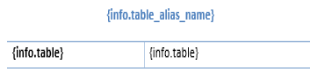
In each column, enter the function {info.table}. |
{info.table} | {i.t} |
The period in the definition of a constant separates the class name from the name of the constant {className.constantName}.
Advanced features - print template automation
Each template can be customized with a program to automate the printout. Typically, we define fields in the template which are then filled in programmatically. For example, the template program can check the selection on the map, make spatial analyses and add data to the template. The program is written as a series of JavaScript commands or SQL statements (depending on the template configuration) and is invoked when a document is created from the template. Note: The option to use SQL queries is not available in all Gismatrix subscription plans.
Function parameters
If the parameter name is followed by a question mark (?), it means that the parameter is optional. The required data type of the function parameter is written after the colon (:). If more than one data type is possible for a parameter, the two data types are separated by an anchor | and this is written as follows: string | number, which means that the parameter can be either a text or a numeric value.
| Class Content |
|---|
|
fileName (docFileName: string): void Use the function to specify the default file name of the document that is created from the template. With the docFileName parameter, specify only the file name without the extension. The final file name will consist of the given file name, the date and time of creation and the docx extension.
|
|
replace(find: string, replace: string): void Replaces all text given by the find parameter that is in the document with the text of the replace parameter.
|
| Class Db |
|---|
|
filter(tableName:
string,
where?: string
, orderBy?:
string, args?:
{"Array |
| Class Gismatrix |
|---|
|
prompt(message: string, rows?: number, defaultValue?: string): string | null The prompt dialog box is very useful when you want to pop-up a text box to get user input. Optional parameters are rows, which specifies the number of lines in the text editing area (default value is 1) and defaultValue, which represents the text initially displayed in the text box. If the user cancels text input, the function returns null.
|
|
alert(message: string, detail?: string): void An alert dialog box is mostly used to give a warning message to the users. Alert box gives only one button "OK" to select and proceed. The optional parameter is detail, which is the text displayed below the message text.
|
| Class Map |
|---|
|
selectManyAlert (tableName: string, prompt?: string, title?: string ): string | null Shows a notification if at least two objects are not selected on the TableName layer. The tableName parameter must be the table/layer name and not an alias. If the notification is displayed, the code that follows this function is not executed. The optional parameters are the message prompt text and the title of the message window.
|
|
selectOneAlert (tableName: string, prompt?: string, title?: string ): void Shows a notification if exactly one object is not selected on the tableName layer. The tableName parameter must be the table/layer name and not an alias. If the notification is displayed, the code that follows this function is not executed. The optional parameters are the message prompt text and the title of the message window.
|
| Class Selection |
|---|
|
getLength(): number Returns the number of objects in the collection of selected objects. If there are no objects selected on the map, it returns 0.
|
|
getFeatureData (index: number ): {"Object"} Returns the attribute data of the selected map object. {"{[key:"} string {"]:"} {" string | number | boolean"} {"\n}"} The index parameter is the number of the object in the selection collection. The first object has index 0. The function returns an error if the object with the given index value cannot be found.
|
|
intersections (tableName: string, options: IntersectOptions ): {"Array |
| User-defined functions |
|---|
|
Inside the program code, you can define classic dedicated functions and then use them again and again. {
return value ? value : "-";
};
const value = nd(“ABC”); // Using the function
Gismatrix.alert(value); // Displays ABC
/**
* The function isprime returns true
* if the given number is a prime number.
*/
const isprime = (n) => {
if (n <= 1) {
return false;
}
// Check from 2 to n-1
for (let i = 2; i < n; i++) {
if (n % i === 0) {
return false;
}
}
return true;
}
// Displays YES
Gismatrix.alert(isprime(11) ? "YES" : "NO");`}
/>
|